

In This Post I Am Going To Show You How To Install Wget In Termux With All Its Features. We Will Install Wget And Discuss About Its Features In Termux We Will Also See A List Of Essential Commands In Wget And How We Can Use Wget In Termux. We Will See How We Can Use The Tool To Resume Broken Downloads And Download Multiple Files At Once. Starting From The Introduction Of Wget. So Lets Start This Post,
What Is Wget?
Wget Is An Essential Utility Tool In Command LINE That Enables A User To Download Files From Internet Directly From A Command LINE. It Works In Both Linux And Termux And Is The Most Used Utility To Download Files From Internet Using Command LINE. Most Of The Cases In Termux It Is Used To Download Scripts, Tool Installers, Wordlists, Or Any Other File Directly From A Website Or GitHub.
How To Install Wget In Termux?
Installing Wget Does Not Require Any Other Tool Or Package. We Just Need To Update All The Termux Packages And Then Install Wget Using A Single Command. To Install Wget You Need An Active Internet Connection And A Device With A Quite Amount Of Free Storage In It. Remember All The Commands Are Case Sensitive. Follow The Below Steps One By One To Install Wget In Termux:
Step 1: First Of All Open The Termux App And Update And Upgrade All The Termux Packages Using pkg update && pkg upgrade -y Command.
pkg update && pkg upgrade -yStep 2: After Updating All The Termux Packages In Termux We Can Now Install Wget In Termux Using pkg install wget -y Command In Termux.
pkg install wget -y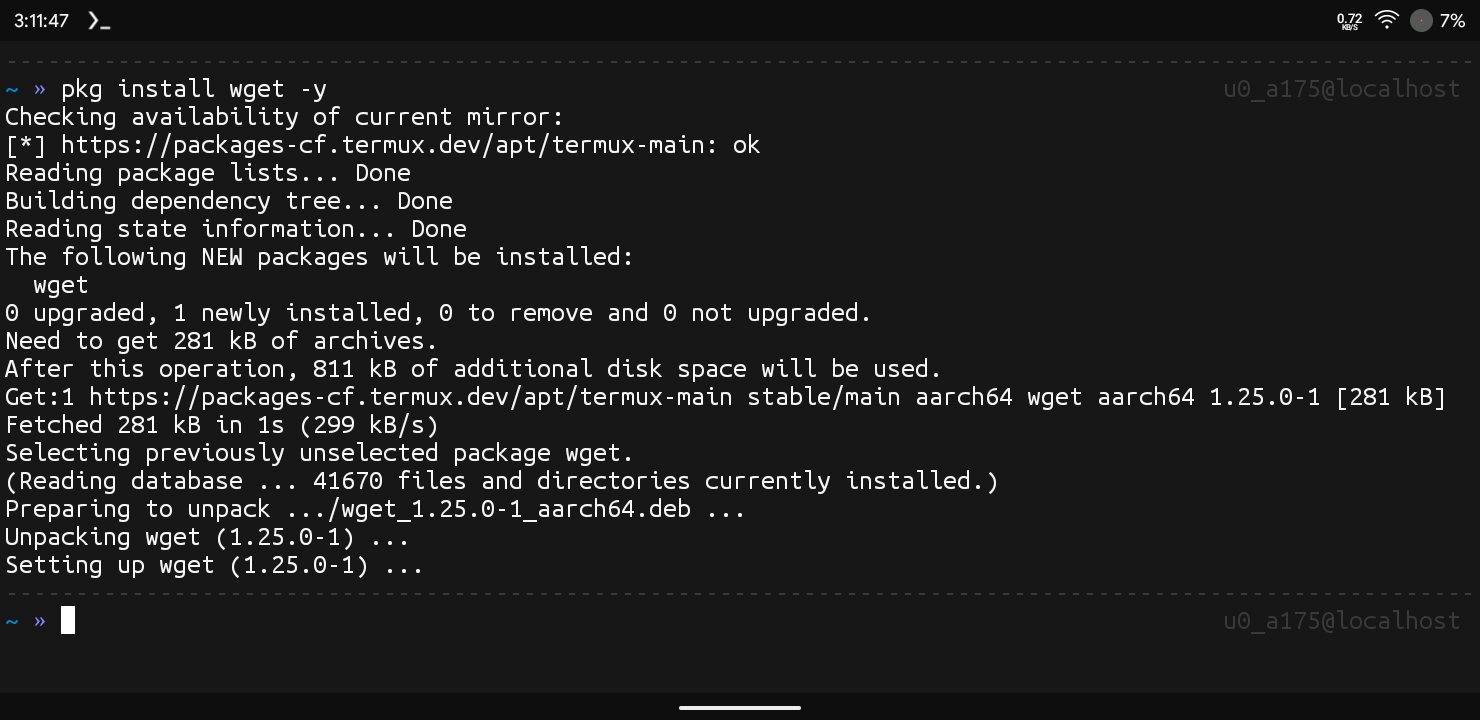
Step 3: Once The Installation Has Been Completed We Need To Verify The Installation Using wget --version Command. If The Command Showed The Version Of The Wget In Termux That Means The Wget Is Successfully Installed In Termux.
wget --version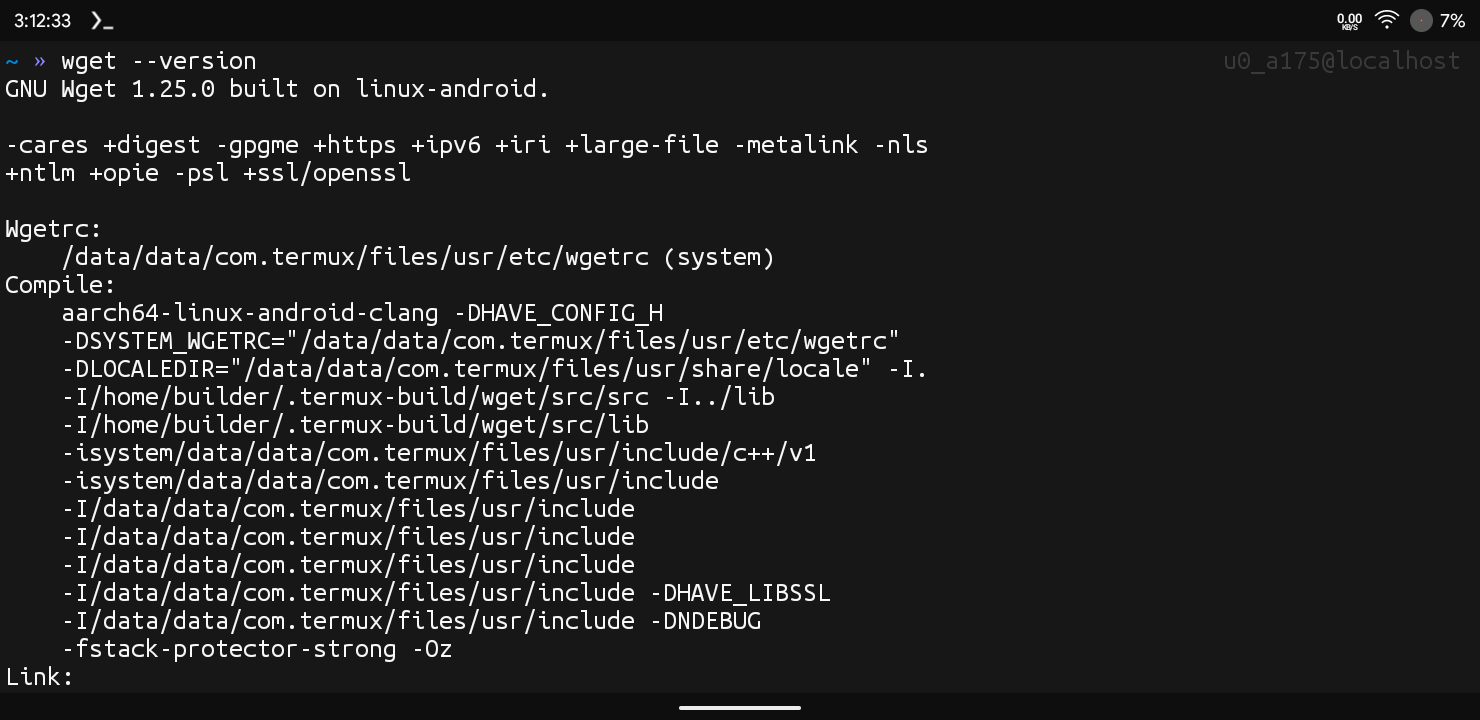
Once The Command Has Been Executed It Will Show The Current Version Of Wget In Termux. These Were Some Of The Simple Steps That Can Be Used To Install Wget In Termux. Once The Installation Has Been Completed We Will Now See How Can We Use Wget In Termux To Download Some Cool Stuff From Internet.
How To Use Wget In Termux?
After The Installation Of Wget In Termux We Will Now Move On The Next Level Of This Post That Is How We Can Use Wget In Termux. Now We Will See How We Can Use Wget To Download Files Directly From The Link Of That File Using Command LINE. We Mostly Use This Tool To Download Bash Scripts In Order To Run That In Terminal But We Can Download Almost Anything From The Internet Using Wget. Follow The Below Steps One By One To Use Wget In Termux:
Step 1: First Of All Choose The File From The Internet That You Want To Download Or Simply Copy The Link Of That File It Can Be An Image Or Any Other Thing.
Step 2: Now Move To The Terminal Of The Android Device And Type Wget Followed By The Direct URL Of That File Which You Want To Download Example I Want To Download A Zip File From Internet Which Has Link Of Address https://example.com/file.zipNow We Will Type wget https://example.com/file.zip To Download It.
wget https://example.com/file.zip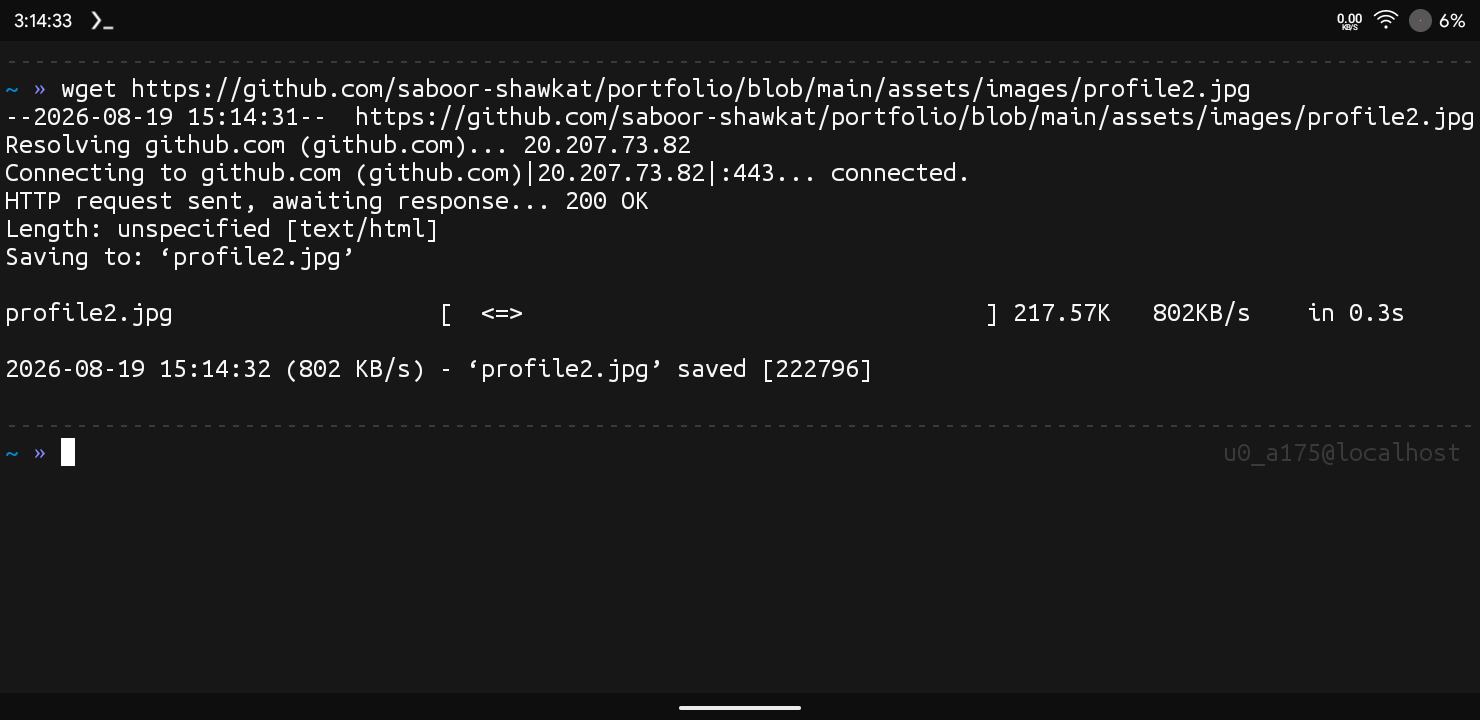
Step 3: Now Wait For The Download To Be Completed. The Download Speed Depends On Your Internet Speed And Your Network Type. It Also Depends On The File Type Sometimes.
Step 4: Once The Download Has Been Completed You Can Simply Type ls To See The Downloaded File In The Folder.
lsThrough These Simple Yet Powerfull Commands We Can Download Any File From Internet Using Wget. Now After All These Things We Can Also Do Some Extra Stuff Using The Terminal We Can Simply Rename The File While Downloading It And Other Things. Now We Will Discuss About Some Extra Commands In Wget Utility In Termux.
Also Read : How To Install Tmux In Termux : Complete Setup Guide 2026
Essential Commands In Wget :
Downloading And Saving With A Custom Name: You Can Simply Type wget -O newname.zip https://example.com/file.zip Command To Save The Downloaded File Under A Different Name.
wget -O newname.zip https://example.com/file.zipResuming A Broken Download: By Typing wget -c https://example.com/file.zip You Can Resume A Download That Got Interrupted Instead Of Starting Over From The Beginning.
wget -c https://example.com/file.zipDownloading Multiple Files At Once: If You Have A List Of Urls Saved In A Text File You Can Type wget -i urls.txt Command To Download Every File Listed Inside It. Make Sure You Have Listed Every Link In A Specific Manner In A Text File With The Specific Name To Complete The Command.
wget -i urls.txtCommon Errors And Fixes:
Wget: Command Not Found: This Error Occurs When Wget Has Not Been Successfully Installed In Termux. We Need To Install Wget In Termux Again Using pkg install wget -y Command To Resolve The Error.
pkg install wget -yDownload Keeps Getting Interrupted On Mobile Data: This Happens Due To An Unstable Connection. Use The -c Flag To Resume The Download From Where It Left Off Instead Of Starting Over Each Time.
Conclusion:
Wget Is One Of The Most Usefull Utility In Termux, It Is Best For Downloading Scripts And Other Files Directly From The Termux. We Can Do Al Lot Of Stuff Like Lmiting The Download Speed Or We Can Even Download A Full Web Page Or Simply A List Of Files Whos Links Are Listed On A Text File. I Hope You Enjoyed This Post As It Was Much Easier To Learn And Use. Thanks For Reading.






1 thought on “How To Install Wget In Termux : Complete Setup Guide 2026”