
In This Post I Am Going To Show You How To Install Tmux In Termux Using Basic And Simple Method. We Will See How We Can Install Tmux In Termux And Also How To Use Tmux In Termux. In This Tutorial We Will Start From The Basics Of Tmux In Termux And We Will See The Installation And All Other Stuff Related To The Tmux In Terrmux, Like The Errors And Fixes, Additional Features And Much More. This Is Gonna Be A Full Fledged Post About Tmux In Termux So Lets Start,
What Is Tmux?
Tmux Is An Open Source Terminal Utility That Allows A User To Open Or Use Multiple Windows In A Single Termux Window. It Allows A User To Work On Different Terminals At A Same Time Without Killing Any Of The Windows. It Is Very Usefull Utility That Can Be Used For Multitasking In Termux. It Keeps The Commands Or SSH Sessions Running Even After The Sceen Turns Off.
How To Install Tmux In Termux?
We Will Install Tmux In Termux Using Our Old And Traditional Method As Does Not Require A Lot Of Knowledge Or Commands To Install In Termux. We Will Update The Termux Packages Then We Will Install The Tmux In Termux And Then We Will Set It Up For The Use. Follow The Below Steps One By One To Install Tmux In Termux:
Step 1: First Of All Open The Termux App And Type pkg update && pkg upgrade -y Command To Update And Upgrade All The Termux Packages.
pkg update && pkg upgrade -yStep 2: Now We Will Install Tmux In Termux Using pkg install tmux -y Command And Wait For The Installation To Be Completed.
pkg install tmux -y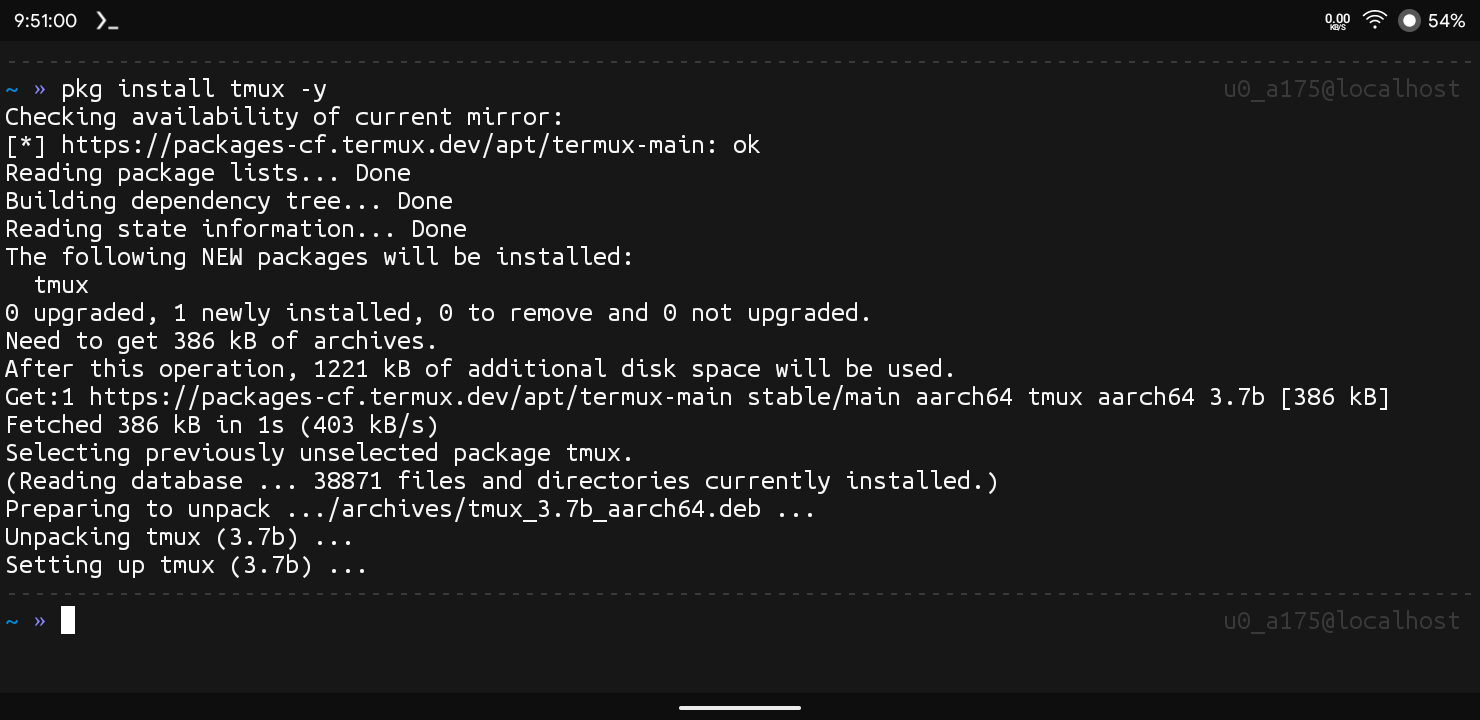
Step 3: Once The Installation Has Been Completed We Need To Verify The Installation Using tmux -V Command.
tmux -VOnce The Command Has Been Executed It Will Show The Current Version Of Tmux In Termux. These Were Some Of The Simple Steps To Install Tmux In Termux. Once The Installation Has Been Completed We Will Now See How Can Setup And Use Tmux In Termux.
How To Use Tmux In Termux?
Once The Installation Has Been Completed We Will Now Use Tmux To Create And Manage A Terminal Session. We Will Start A New Session, Run A Command Inside It, Detach From It, And Then Reattach To Show How Sessions Stay Alive. Follow The Below Steps To Use Tmux In Termux:
Step 1: First Of All Lets Start A Tmux Session In Termux Using tmux Command.
tmuxStep 2: Now We Are In A Tmux Session And You Can Start Your First Task By Typing The Command Of That Task. I Am Starting A Ping Command In This Session.
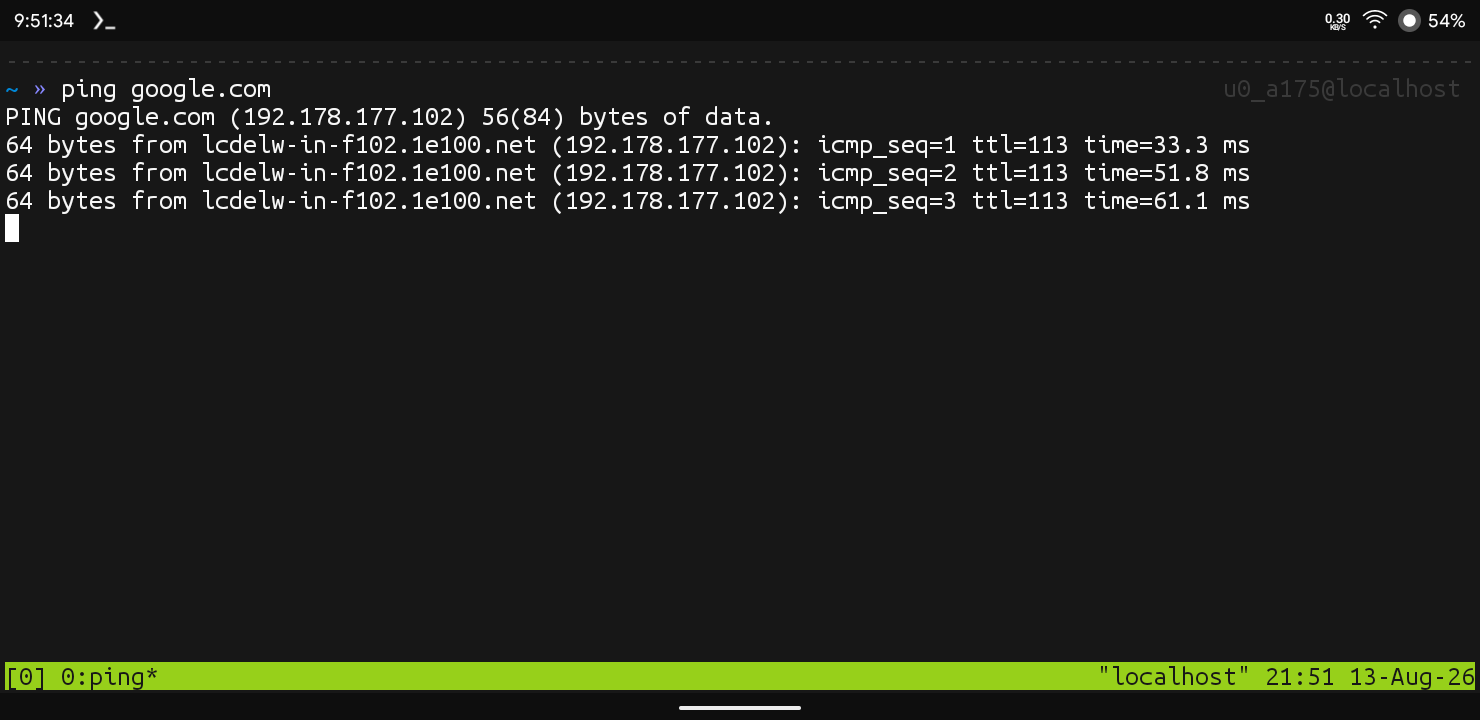
Step 3: Now Type Ctrl + B And Then Click On D. This Will Create A New Terminal And Add A New Task In This Session But Will Keep The Old Session Running In Background.
Step 4: Now We Can Check The Both Sessions Are Working Or Not By Typing tmux ls Command. It Will Show The List Of Active Termux Sessions.
Step 5: Now If You Want To Split Your Current Pane Into Two Side By Side Panes You Can Press Ctrl + B Then % To Do That.
Step 6: If You Want To Split Your Current Pane Into Two Stacked Panes You Can Press Ctrl + B Then " To Do That.
This Is Proper Method Of Using Tmux In Termux With Proper Checking Of Commands In Termux. If You Want To Add Another Task You Can Just Add By Just Typing The Same Commands Again And Check The Active Sessions Using tmux ls Command. I Hope You Have Understood That.
Essential Commands In Tmux:
We Can Do A Lot Of Stuff In Tmux Using Some Basic And Simple Commands In Termux. Some Of Them Are Listed Below:
Starting A New Session With Name: If You Want To Create A New Session In Tmux With Name You Can Simply Type tmux new -s mysession Command. Replace mysession With The Name You Want.
tmux new -s mysession 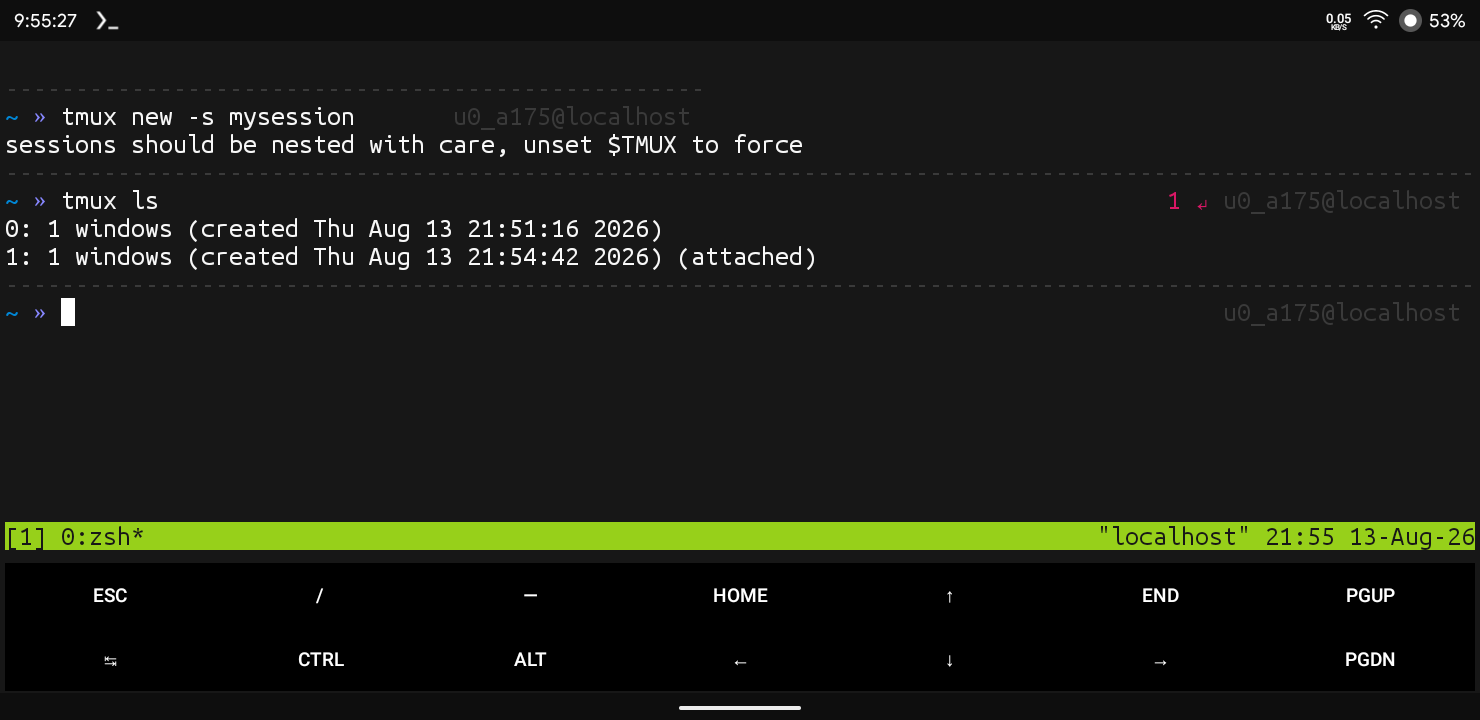
List All Sessions In Tmux: If You Want To List All The Sessions That You Have Opened In Termux You Can Simply Type tmux ls Command In Termux.
tmux lsKilling A Session: If You Want To Terminate A Session In Tmux You Need To Type tmux kill-session -t mysession Command. Just Replace The Mysession With The Session You Want To Kill.
tmux kill-session -t mysessionCommon Errors And Fixes:
Tmux: Command Not Found: This Error Happens When Tmux Is Not Properly Installed In Termux. You Need To Install Tmux Properly In Termux Using pkg install tmux -y Command.
pkg install tmux -yNo Sessions Found When Attaching: This Error Occurs When The Session You Are Trying To Attach To Has Already Been Killed Or Was Never Created. Just Type tmux ls To Check The Exact Name Of The Active Session Before Attaching.
tmux lsConclusion:
Tmux Is All About Creating And Closing New Tabs In A Terminal Or To Look A Different Data Patterns Or Sessions In Termux. You Can Use This Utility In A Various Types According To Your Work Or Ease. We Have Covered A Lot Of Details, Installation And Usage Of Tmux In Termux. I Hope You Have Liked This Post. If You Have Still Any Questions Regarding This Post You Can Tell Me In The Comments. Thanks For Reading.





1 thought on “How To Install Tmux In Termux : Complete Setup Guide 2026”