

In This Post I Am Going To Show You How To Install Nano In Termux With All The Things. We Will Cover All The Details Related To Nano, How To Use It And How To Create And Edit A File Directly From Termux. We Will See How We Can Use The Editor To Quickly Make Changes To Config Files And Scripts Without Leaving The Command LINE. We Will Start From The Basic Definition Followed By The Installation Of Nano In Termux And Then The Usage Of Nano In Termux. So Without Wasting Much Of The Time Lets Start,
What Is Nano?
Nano Is An Open Source Terminal Editor That Helps You To Create Edit And Manage Text Based Files In A Terminal. In Termux You Can Use It To Create Or Edit Different Types Of File Extensions. You Can Write Small Scripts And Manage A Lot Of Files In Nano In Termux. It Is One Of The Mostly Used Linux Command Line Utility. It Is More Simple As Compared To Vim We Can Also Install It Using A Simple And A Basic Command In Termux.
How To Install Nano In Termux?
We Will Install Nano In Termux Using The Procedure That We Follow. We First Update The Packages Then We Install Nano In Termux, Then Check The Version And Later On Setup Nano In Tremux Using Basic And Simple Commands, So Just Follow The Steps One By One To Install Nano In Termux:
Step 1: First Of All The Termux App And Connect The Device To The Internet And Type The First Command To Update And Upgrade All The Termux Packages Using pkg update && pkg upgrade -y Command.
pkg update && pkg upgrade -yStep 2: Now We Will Simply Install Nano In Termux Using The Basic Command As pkg install nano -y In Termux And Wait For The Nano To Get Fully Installed In Termux.
pkg install nano -y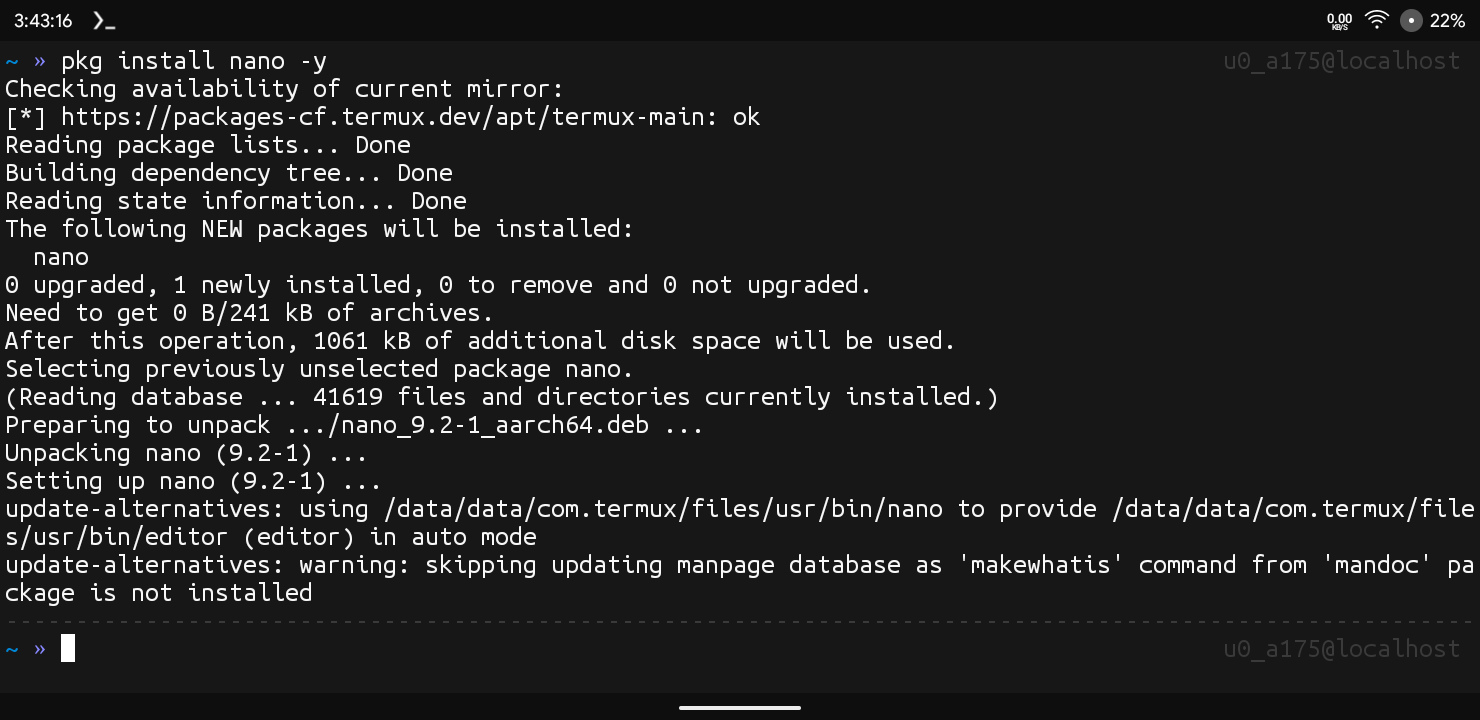
Step 3: Now We Will Check The Version Of The Nano That We Installed As To Verify The Installation Of The Nano In Termux. We Will Simply Type nano --version Command And Check The Screen To See The Current Version Of Nano In Termux.
nano --versionThrough These Simple But Powerfull Commands We Can Install Nano In Termux. I Hope You Have Done It In According And Make Sure The Commands Are Case Sensitive So If You Are Stuck At A Command Check The Command For A Typo. If The Problem Still Occurs Then Check You Internet Connection. Now We Will See How We Can Use Nano In Termux And We Will Talk About Some Essential Commands In Termux For Nano.
Also Read : How To Install Tmux In Termux : Complete Setup Guide 2026
How To Use Nano In Termux?
Once We Have Installed The Nano In Termux Successfully We Will See How We Can Use It In Termux Using Proper Method. We Will Create A Text File In Termux Then We Will Add Some Of The Text In It And Then We Will Simply Check The File Again For The Changes We Made. Follow The Steps See How We Can Use Nano In Termux:
Step 1: First Of All We Need To Open Or Create A File Using nano notes.txt Command. If The File Does Not Exist Yet Nano Will Create It Once You Save.
nano notes.txtStep 2: Now You Are Inside The Nano Editor. Unlike Vim, You Can Start Typing Immediately, There Is No Separate Insert Mode. Just Type Something Like This Is My First Nano File.
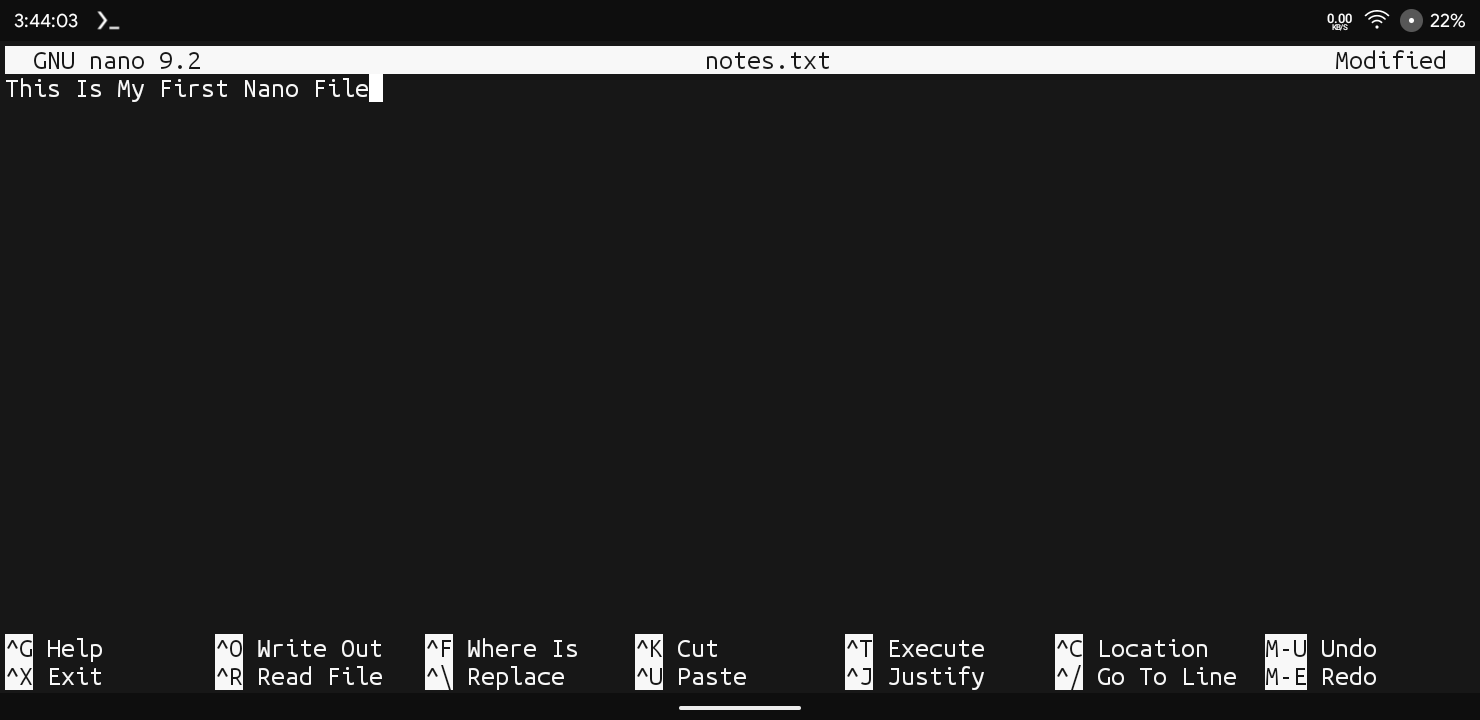
Step 3: Once You Are Done Typing, Save The File By Pressing Ctrl + X, Then Press Enter To Confirm The File Name.
Step 4: Now To Exit Nano Press Ctrl + X. This Will Take You Back To The Normal Termux Window.
Step 5: To Confirm The File Saved Correctly We Will Simply Type cat notes.txt Command To Print The Contents Back On The Screen.
cat notes.txt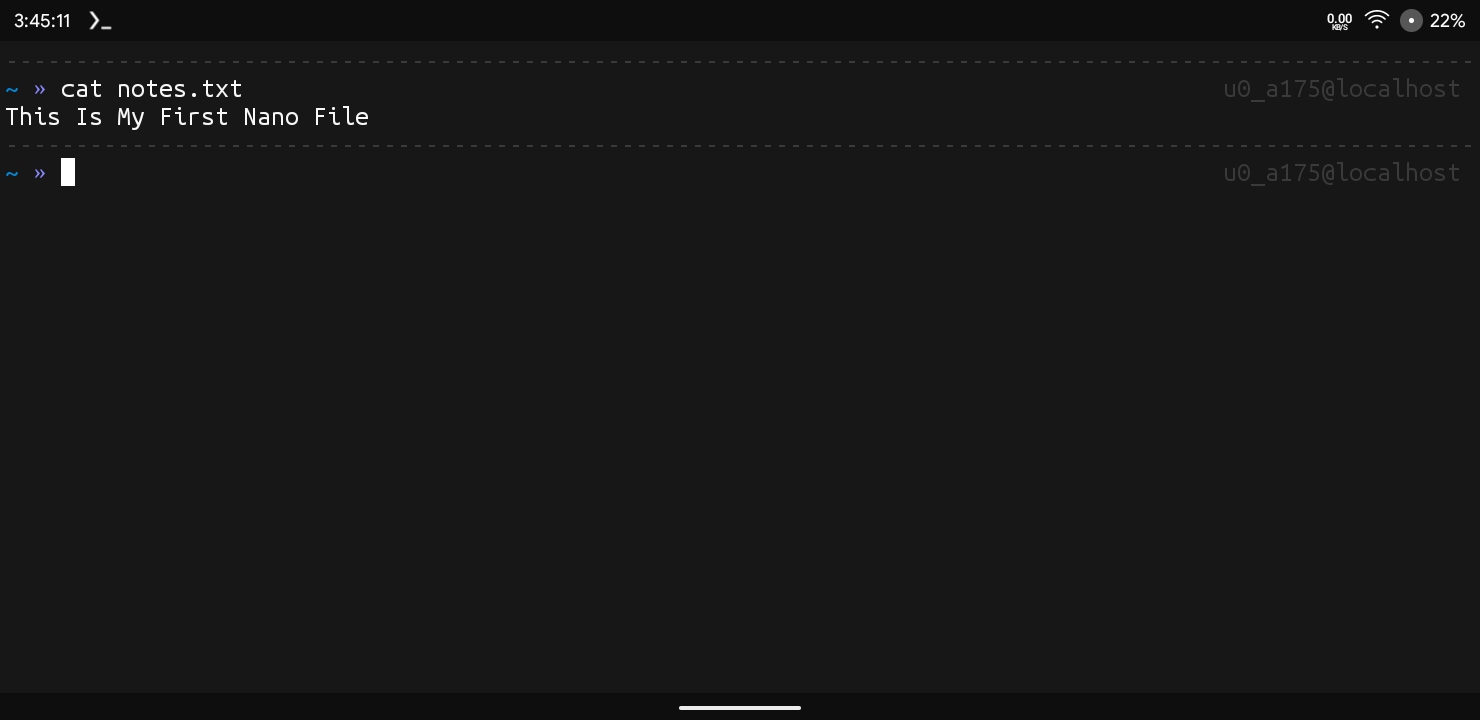
Once The Command Has Been Executed It Will Show Your Typed Text Printed Back, Confirming Nano Saved The File Correctly. We Can Also Use A Lot Of Shortcuts In Nano To Edit Files More Efficiently. I Have Provided A List Of Essential Commands In Nano To Edit Files Properly.
Essential Commands In Nano:
Save A File: If You Want To Save A File In Termux After You Have Edited It In Termux You Just Need To Click Ctrl + O And Then Click On The Enter Button To Save It.
Searching For Text: If You Want To Search A Text In A Text File You Need To Click On Ctrl + W Then Type The Term You Want To Search And Then Click On Enter Button To Search It.
Cutting A Line: If You Want To Cut A Line In A Text File Using Nano You Will Simply Ctrl + K And Then Line Will Be Completely Wiped Out.
These Were Some Of The Important Commands Or We Can Say Shortcuts That We Can Use In Nano Utility To Ease Our Work And To Increase Speed. I Hope You Know The Other Ones As They Are Much Easier.
Conclusion:
Nano Is An Awesome Text Editor For Terminal. It Can Be Directly Used On Terminal That Is Its Best Thing. Unlike Other Text Editors In My Opinion It Is One Of The Most Light Weight Tool In The Terminal. I Hope You Have Get All Of The Things Which I Told And Show You In The Tutorial But If You Have Still Any Questions You Can Tell Me In The Comments Section. Thanks For Reading.






1 thought on “How To Install Nano In Termux : Complete Setup Guide 2026”