In This Post I Am Going To Show You How To Install Node.js In Termux With All The Things. We Will Cover All The Details Related To Node.js, How To Use It And How To Run Our First JavaScript File Directly From Termux. We Will See How We Can Use Npm, Node’s Package Manager, To Install Extra Libraries For Our Projects. We Will Start From The Basic Definition Followed By The Installation Of Node.js In Termux And Also The Usage Of Node.js In Termux. So Without Wasting Much Of The Time Lets Start,
What Is Node.js?
Node.js Is An Open Source JavaScript Runtime That Helps You To Run A JavaScript Code Outside A Browser By Using Directly A Command Terminal. In Termux The Node.js Is Used To Build A Little Some Tools Or To Automate Tool That Are Witten In JavaScript Language. This Tool Is One Of The Most Used Runtimes For Web Developers Since It Comes Bundled With npm, A Massive Library Of Free Packages You Can Install With A Single Command.
How To Install Node.js In Termux?
We Will Install Node.js In Termux Using The Most Easy Method That Is Available On Internet. We Will Update The Termux Packages Followed By Setting The Environment For The Installation Of The Node.js In Termux. After That We Will Configure The Node.js In Termux And See How To Use It In Termu. Follow The Below Steps One By One To Install Node.js In Termux:
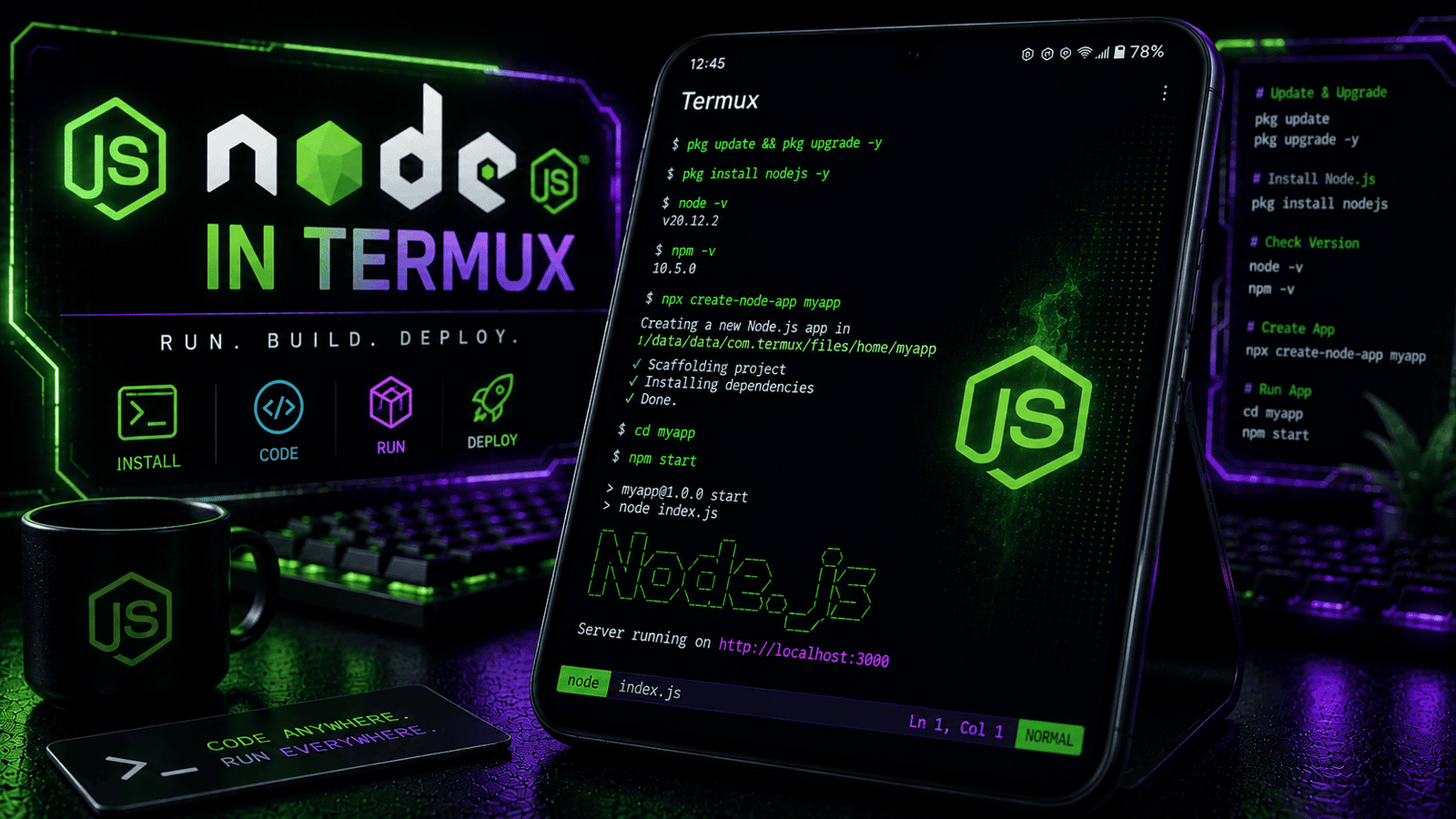
Step 1: First Of All We Will Do The Universal Command Typing pkg update && pkg upgrade -y Command To Update And Upgrade All The Termux Packages.
pkg update && pkg upgrade -yStep 2: Now We Will Install Node.js Directly From The Termux Packages Using pkg install nodejs -y Command And Wait For The Installation To Complete.
pkg install nodejs -y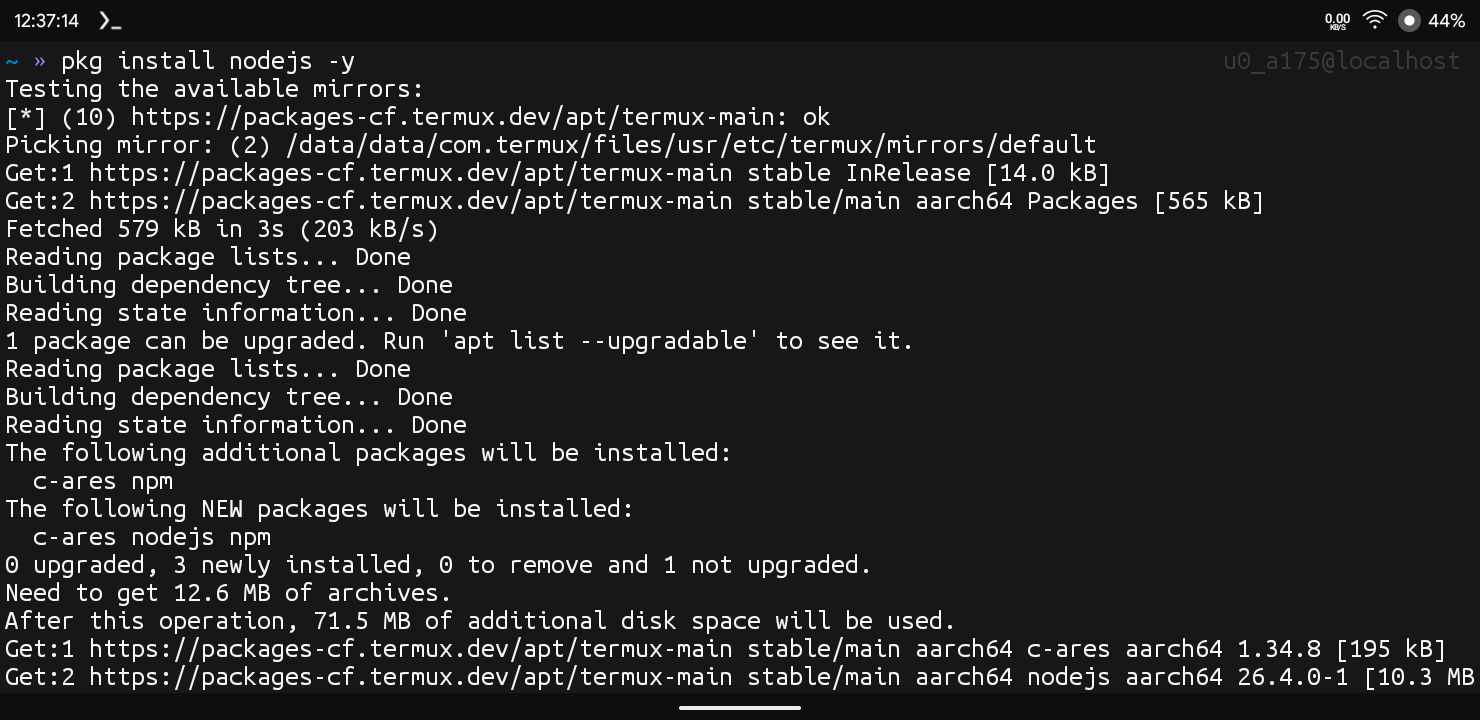
Step 3: Now We Will Verify The Installation Of The Node.js In Termux Using node -v Command In Termux.
node -vThis Command Will Show The Current Version Of Node.js In Termux And If The Version Is Shown Successfully That Explains The Node.js Is Installed In Termux Without Any Errors. After The Installation Is Successfully Completed In Termux We Will See How To Configure The Node.js In Termux And See How We Can Use It In Termux.
Also Read : How To Install ExifTool In Termux : Complete Setup Guide 2026
How To Use Node.js In Termux?
Once The Installation Has Been Completed We Will Now Write And Run Our First JavaScript File To Confirm Everything Works. We Will Create A File, Add A Simple LINE Of Code Inside It, And Then Run It Using Node. Follow The Below Steps To Use Node.js In Termux:
Step 1: First Of All We Need To Create A New File Using nano app.js Command. ( If You Do Not Have Nano Installed Yet, Run pkg install nano -y First).
nano app.jsStep 2: Now Type console.log(“Hello From Node.js In Termux!”); Line Of Code Inside The File.
console.log("Hello From Node.js In Termux!");Step 3: Save And Exit Nano By Pressing Ctrl + O, Then Enter, Then Ctrl + X.
Step 4: Now To Run The File We Will Simply Type node app.js Command To Execute The Script.
node app.js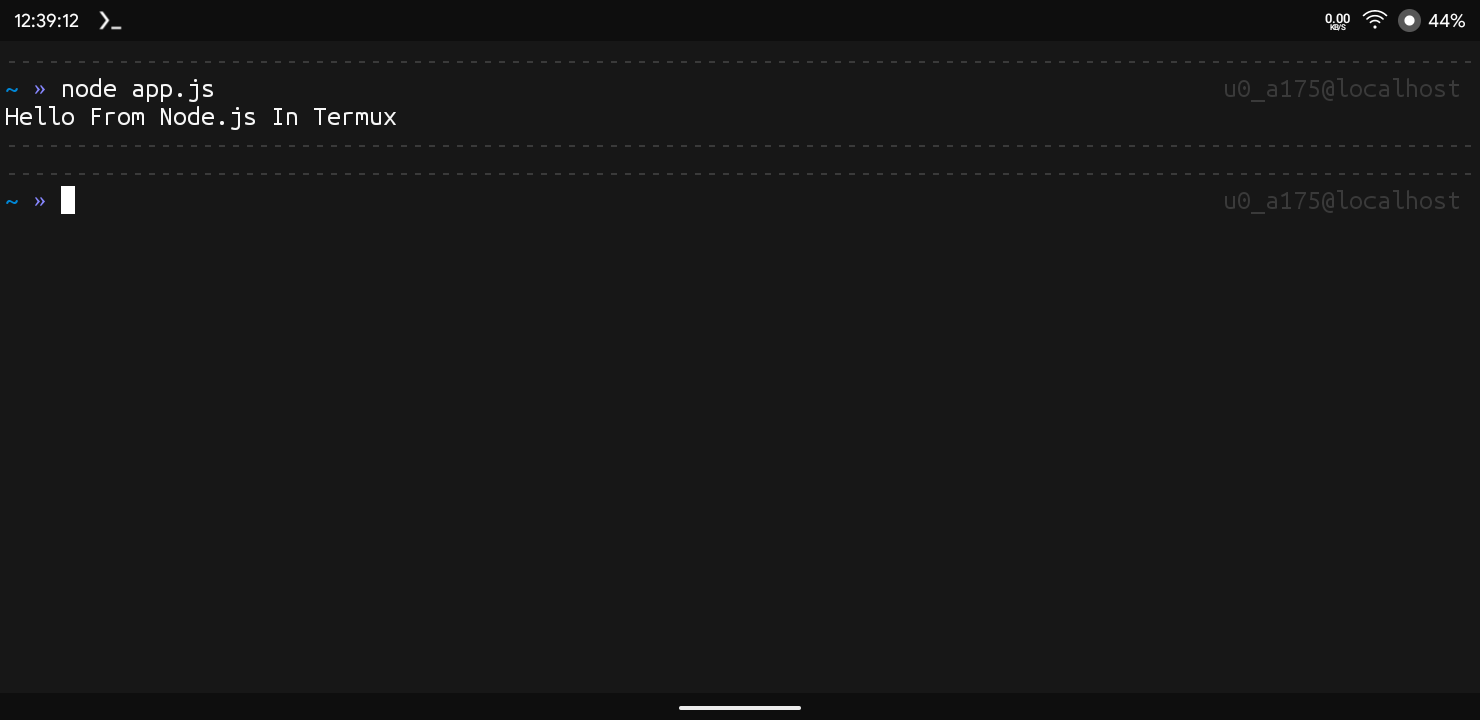
Once The Command Has Been Executed It Will Show Hello From Node.js In Termux! Printed On The Screen, Confirming Node.js Is Fully Working. We Can Also Use npm To Install Extra Packages For Our Projects. I Have Also Provided A List Of Essential Commands In Node.js To Do Many Other Things In Termux.
Essential Commands In Node.js:
Starting A New Project: To Create A New Project In Node.js We Need To Type npm init -y Command In Termux.
npm init -yInstalling A Package: If You Want To Install A Library Or A Package In Termux We Just Need To Type npm install express Command In Termux.
npm install expressListing Installed Packages: If You Want To Check The Packages That Are Currently Installed In Your Project You Need To Type npm list Command To See Them.
npm listCommon Errors And Fixes:
Node: Command Not Found: This Only Happens When The Node.js Is Not Properly Installed In Termux. We Just Need To Type pkg install nodejs -y Command In Termux To Resolve This Error.
pkg install nodejs -yCannot Find Module Error When Running A Script: This Error Comes On The Screen When A Package That You Used Has Not Been Installed Yet. Just Type npm install [module-name] Command Resolve It.
npm install [module-name]Conclusion:
Node.js Is Another Awesome Thing In Termux That Can Be Used To Do A Lot Of JavaScript Functionalities In Termux. We Have Seen A Lot Of Things In This Post About Node.js In Termux. I Hope You Have Liked This One Also And Thanks For Reading. Make Sure To Subscribe To Our WhatsApp Or Telegram Channel To Stay Updated.