

In This Post I Am Going To Show You How To Install ExifTool In Termux With All The Things. We Will Cover All The Details Related To The ExifTool, How To Use It And How To Get Data From An Image. We Will See How We Can Use The Tool To Extract The Specific Details From The Image. We Will Start From The Basic Definition Followed By The Installation Of ExifTool In Termux And Also The Usage Of ExifTool In Termux. So Without Wasting Much Of The Time Lets Start,
What Is An ExifTool?
Exiftool Is An Open Source Information Gathering Tool That Reads And Writes Metadata Across Not Just Photos, But Pdfs, Videos, Audio Files, And More. It Supports A Lot Of Formats But Most Of The Cases Of Termux It Is Used For Image Metadata Extractor Tool. This Post Is One Of The Most Used Tool To Find Data Like GPS, Device Info And Other Things From An Image.
How To Install Exiftool In Termux?
Installing Exif Tool Does Not Require Any Other Tool Or Package. We Just Need To Update All The Termux Packages And Them Install Exiftool Using A Single Script. To Install Exiftool You Need An Active Internet Connection And A Device With A Quite Amount Of Free Storage In It. Follow The Below Steps One By One To Install Exiftool In Termux:
Step 1 : First Of All Open The Termux App And Update And Upgrade All The Termux Packages Using pkg update && pkg upgrade -y Command.
pkg update && pkg upgrade -yStep 2: After Updating All The Termux Packages In Termux We Can Now Install Exiftool In Termux Using pkg install exiftool -y Command In Termux.
pkg install exiftool -y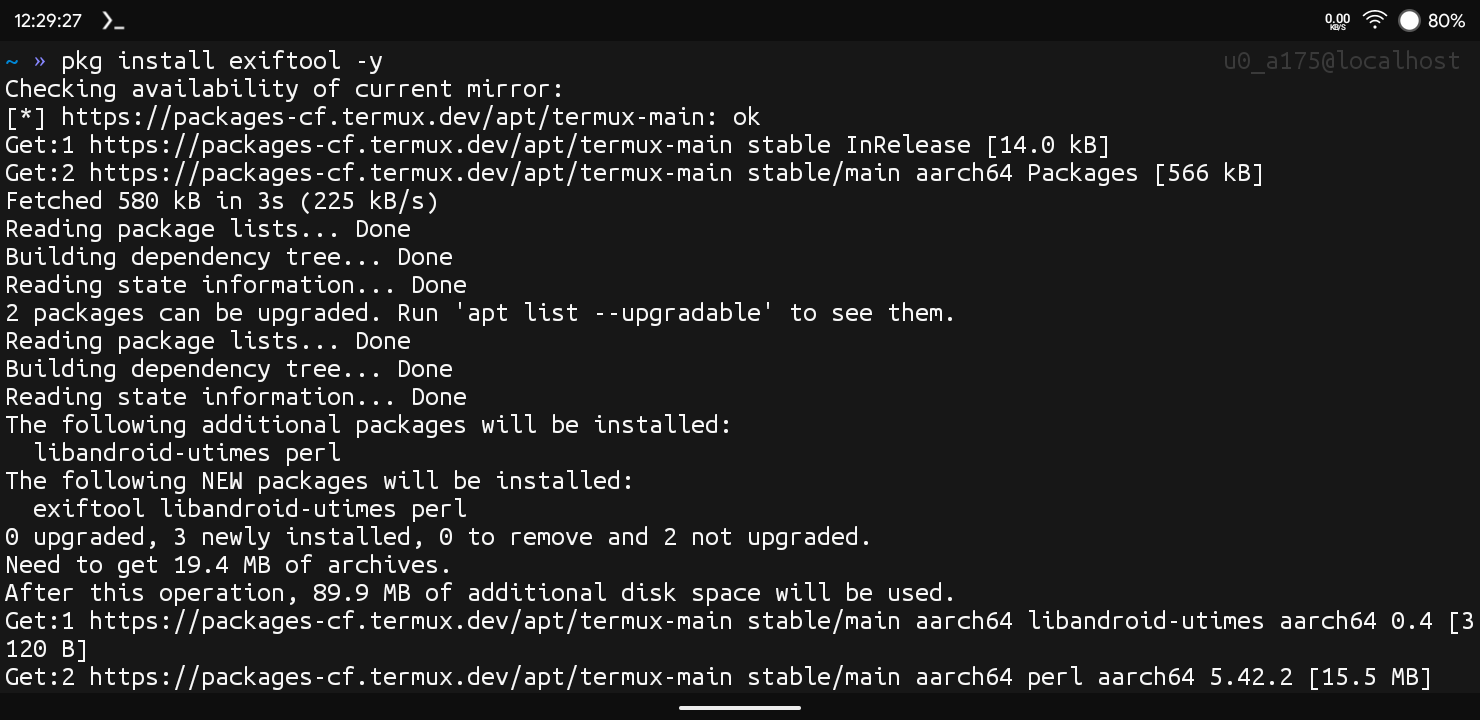
Step 3: Once The Installation Has Been Completed We Need To Verify The Installation Using exiftool -ver Command.
exiftool -ver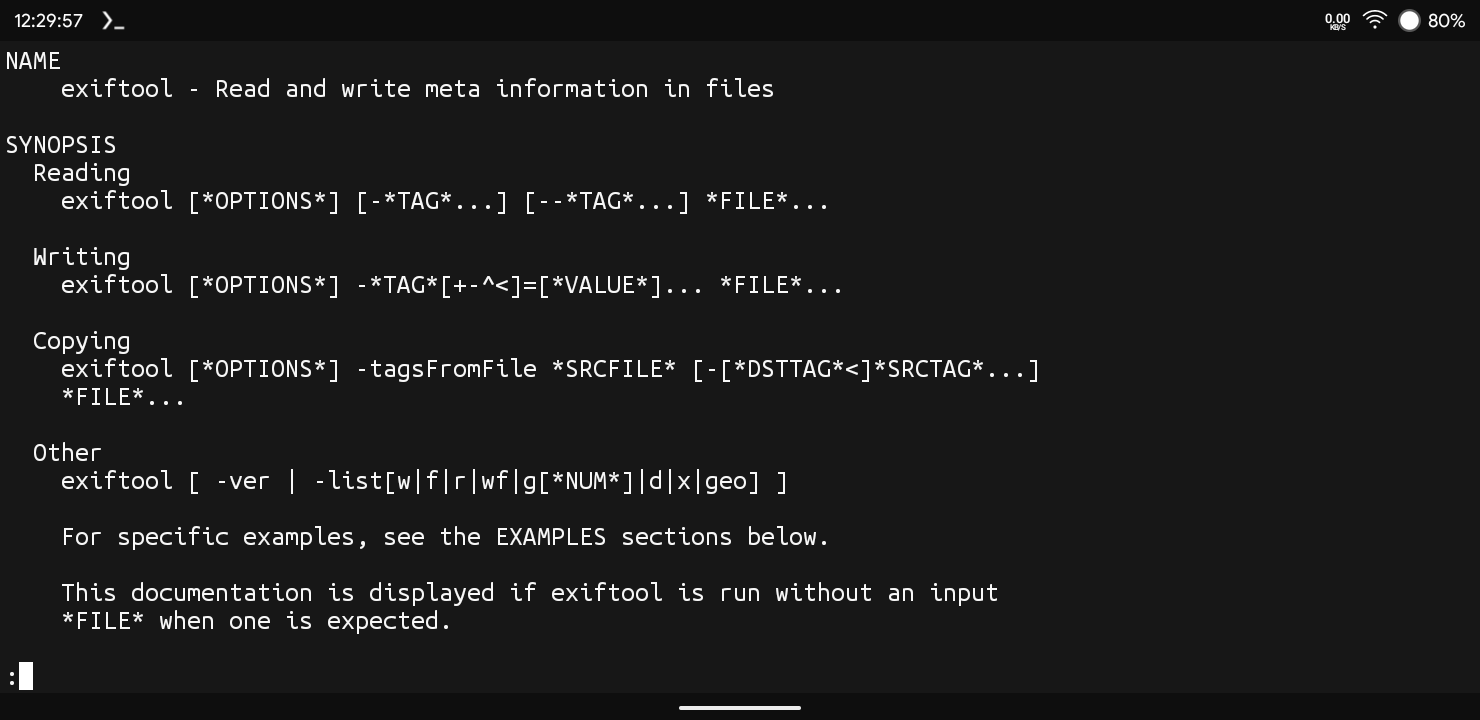
Once The Command Has Been Executed It Will Show The Current Version Of ExifTool In Termux. These Were Some Of The Simple Steps To Install ExifTool In Termux. Once The Installation Has Been Completed We Will Now See How Can We Use ExifTool In Termux.
Also Read: How To Install OhMyZsh In Termux : Complete Setup Guide 2026
How To Use ExifTool In Termux?
Once The Installation Has Been Completed We Will Now Use The ExifTool To Extract Some Of The Metadata From It. We Will Choose An Random Image And Move That Image Into Home Directory And Then Execute Command To Extract Meta Data From An Image. Follow The Below Steps To Use ExifTool In Termux:
Step 1: First Of All We Need To Choose The Image On Which We Are Doing This Meta Data Search. Select The Photo And Check The Exact Location Of That Photo.
Step 2: Now Give The Storage Permissions To The Termux App Using termux-setup-storage Command So That We Can Access To The Photo To Use Exiftool On That
termux-setup-storageStep 3: Now We Need To Go To The Location Of That Image Using cd /path/to/image Command. Make Sure To Use The Actual Location Of That Image. You Can Go With The Step By Step Process Of Moving To That Location.
cd /path/to/imageStep 4: If Once You Are In The Folder Where The Image Exists We Will Simply Type exiftool photo.jpg Command To Extract The Metadata From The Image. ( Make Sure To Type The Exact Name Or You Can Simply Type Ls To Check The Files And Image Name).
exiftool photo.jpg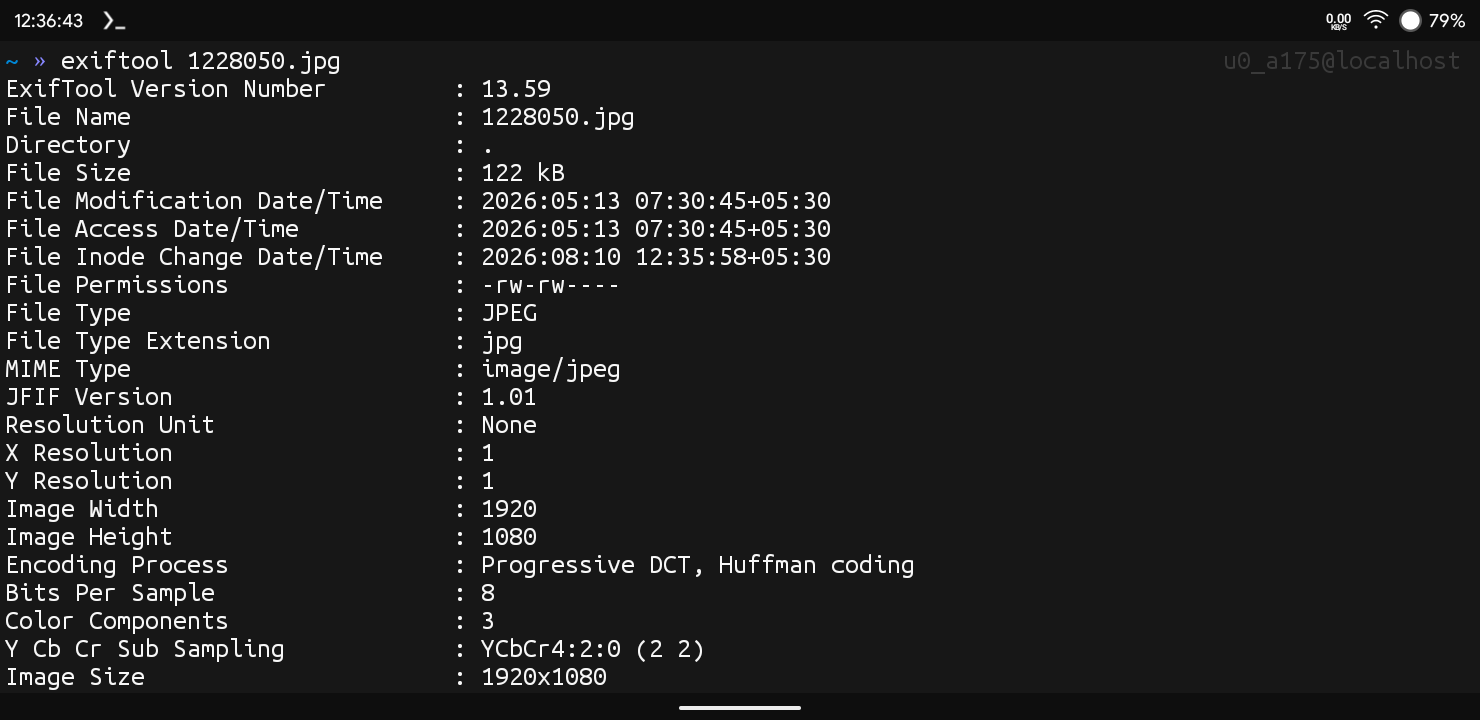
A List Of Details Of That Image Will Show On The Screen You Can See The Data Like Image Size, Camera Model, Software And Date And Time Of Taken. We Can Also See A Lot Of Details Using Different Commands In Exif Tool. I Have Provided A List Of Essential Commands In Exiftool To Get Data About The Image.
Essential Commands In Exiftool:
Reading Metadata From All The Images: You Can Simply Type exiftool *.jpg Command To Extract The Metadata From All The JPG Images In That Folder.
exiftool *.jpgGet GPS Coordinates : By Typing exiftool -gps:all photo.jpg You Can Get The GPS Location Of The Image.
exiftool -gps:all photo.jpgGet Camera Model: If You Want To Check The Camera Model Of An Image You Need To Type exiftool -model photo.jpg Command To Check Its Camera Model.
exiftool -model photo.jpgRemove Metadata From The Image: If You Want To Remove The Metadata From The Image You Can Type exiftool -all= photo.jpg Command To Remove The Metadata From It.
exiftool -all= photo.jpgAdd Copyright Or Author Tag: If You Want To Add An Copyright Or An Author Tag In An Image Just Type exiftool -artist="Your Name" -copyright="© 2026 Your Name" photo.jpg Command To Do That.
exiftool -artist="Your Name" -copyright="© 2026 Your Name" photo.jpgThese Were Some Essential Commands In Exiftool That Can Be Used In Termux. There Are Also Many Other Commands To Run In Exiftool In Termux You Can Check All Of Them By Typing exiftool -h Command In Termux.
Common Errors And Fixes:
Exiftool: Command Not Found: This Error Occurs When Exiftool Has Not Been Successfully Installed In Termux. We Need To Install Exiftool In Termux Again Using Pkg Install Exiftool -y Command To Resolve The Error.
File Not Found : This Command Occurs When We The File Is Not Available At The Location Or We Have A Typo In The Path To File. Just Check The Image Name And Path To Resolve The Error.
Conclusion:
Exiftool Is One Of The Most Popular Image Metadata Extractor Tool In Termux And Other Linux Systems. We Have Covered A Lot Of Details, Installation And Usage Of The Exiftool In Termux. I Hope You Have Liked This Post. If You Have Still Any Questions Regarding This Post You Can Tell Me In The Comments. Thanks For Reading.






1 thought on “How To Install ExifTool In Termux : Complete Setup Guide 2026”